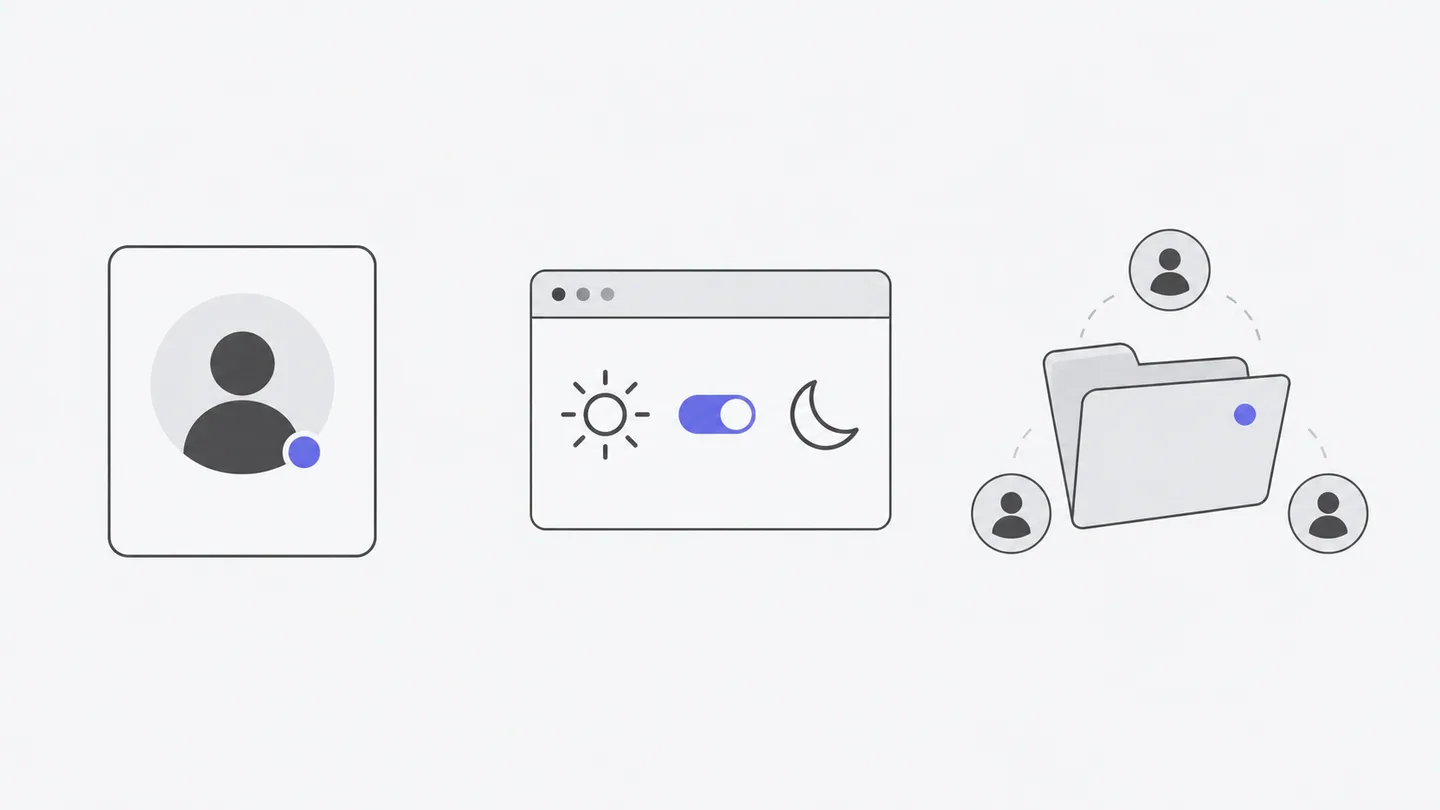
Before changing a setting, identify its scope: your profile belongs to your account, appearance and conversation preferences stay in the current browser, and Workspace settings affect the current Workspace. Choosing the right scope prevents confusion on another device or unintended effects on collaborators.
- Locate the stepWhat were you trying to do?
- Keep the evidenceMessage, time, environment and result
- Take the next actionFollow the matching fix or contact support
The diagram starts with a symptom: check status and settings, perform a small verification, then ask for help with the time, entry point, and error. Deleting a project is not a routine troubleshooting step.
Profile and sign-in
Open “Personal” from settings. “Profile” lets you change the username and avatar other Workspace members see. “Account and sign-in” shows your email and linked login identities. The login email cannot currently be changed here.
After editing your profile, check the member list. If you seem to be in another account, inspect the login email before recreating a Workspace. Save edited files before signing out; the UI asks for confirmation when there are unsaved changes. Signing out ends the current login session. It does not delete a project or stop a subscription.
“Account and sign-in” also links to the subscription marketplace for plans and credits. See Models and usage for model and billing details.
Language, theme, and sending messages
Open “App → Appearance” to choose the system, light, or dark theme and the interface language. This changes Agent.Space's UI; it does not translate existing files or require the Agent to use that language. If you need a response in a particular language, state that in the task.
In “Conversation preferences,” choose the send shortcut. With Enter to send, Shift+Enter inserts a newline. With ⌘/Ctrl+Enter to send, Enter inserts a newline. If you write multi-paragraph requests, choose the latter, then test a short draft to ensure newlines do not accidentally send it.
Appearance and conversation preferences are saved only in the current browser, not synced across devices. If a different computer or browser shows defaults, set them again rather than assuming the account was lost.
Notification center and completion alerts
The sidebar bell opens “Notifications,” with “Changelog,” “Activities,” and “Tips.” The changelog explains product changes; Activities contains relevant announcements; Tips offers feature entry points. These differ from operating-system task completion alerts.
Enable system alerts under “App → Conversation preferences → Task completion notifications.” They require browser support and permission and notify when the page is not focused. If the browser has blocked them, allow notifications in its permissions for this site first. Repeatedly clicking a disabled switch will not resolve that.
To verify, start a short task, switch to another window, and check for a notification after completion. Even without an alert, return to the Session to check whether the task finished. System notifications, page state, and task execution are separate checks.
Check what your role permits
“Security and privacy” in Workspace settings explains roles and boundaries. Owners manage members, transfer ownership, and delete Workspaces. Editors create Agents and conversations and edit files and cloud configuration. Viewers read files, conversations, and permitted previews.
If editing controls are missing or you cannot send a task, check your role and contact the owner. Do not work around roles by sharing an account. Shared computers also have owner-controlled folders, approvals, and remote-control settings; see Cloud and your own computer.
Workspace files and conversations are for authorized members. Publishing a public website is separate. Before sharing externally, check whether you have a members-only preview or a public link; see Preview and share.
Data copies, connected apps, and privacy
“Personal → Connected apps” lets you review and revoke applications with account access. Check which tools depend on an authorization before revoking it. Later access may require reconnecting. This is separate from removing a Workspace Plugin configuration.
“Personal → Privacy and data protection → Data management” provides “Get a copy of my data.” Click “Generate and download,” then inspect the JSON file. It contains the current account's subscriptions, payment references, usage, referrals, and security records, excluding keys and other accounts' information. It is not a backup of the entire Workspace project and all conversations. Download project files separately and check that they open.
The product's security statement says Agent.Space does not train models on your files and conversations, sell them, or use them for advertising. Cloud Agents cannot obtain platform model keys or payment information. With external models or connected apps, still understand which materials you are sending to which service. Do not send credentials as task text.
Read the consequences of restart and deletion
If the runtime is stuck or configuration needs reloading, restart the cloud computer from Workspace settings. A computer Workspace instead offers “Restart runtime,” which does not restart the entire computer. Restarting interrupts running tasks and temporary services while preserving saved files, chats, and queued tasks. Tasks try to resume; Agents without conversation-resume support need a new conversation.
Deleting a Workspace is irreversible: cloud Workspace project files, along with workspace conversations, Agents, and memberships, are permanently deleted, and unsaved edits are lost. For a Workspace connected to your own computer, deletion stops its runtime and disconnects it; it does not delete the local project files on that computer for you. All running tasks must finish, and you must enter the exact Workspace name. Published websites are not deleted with the Workspace. To stop public access, take the website offline in website management rather than just deleting its Workspace.
Account and data deletion goes through support. Contact support from the account email for identity verification. Exporting data or signing out does not delete the account.
Common symptoms: begin with a small check
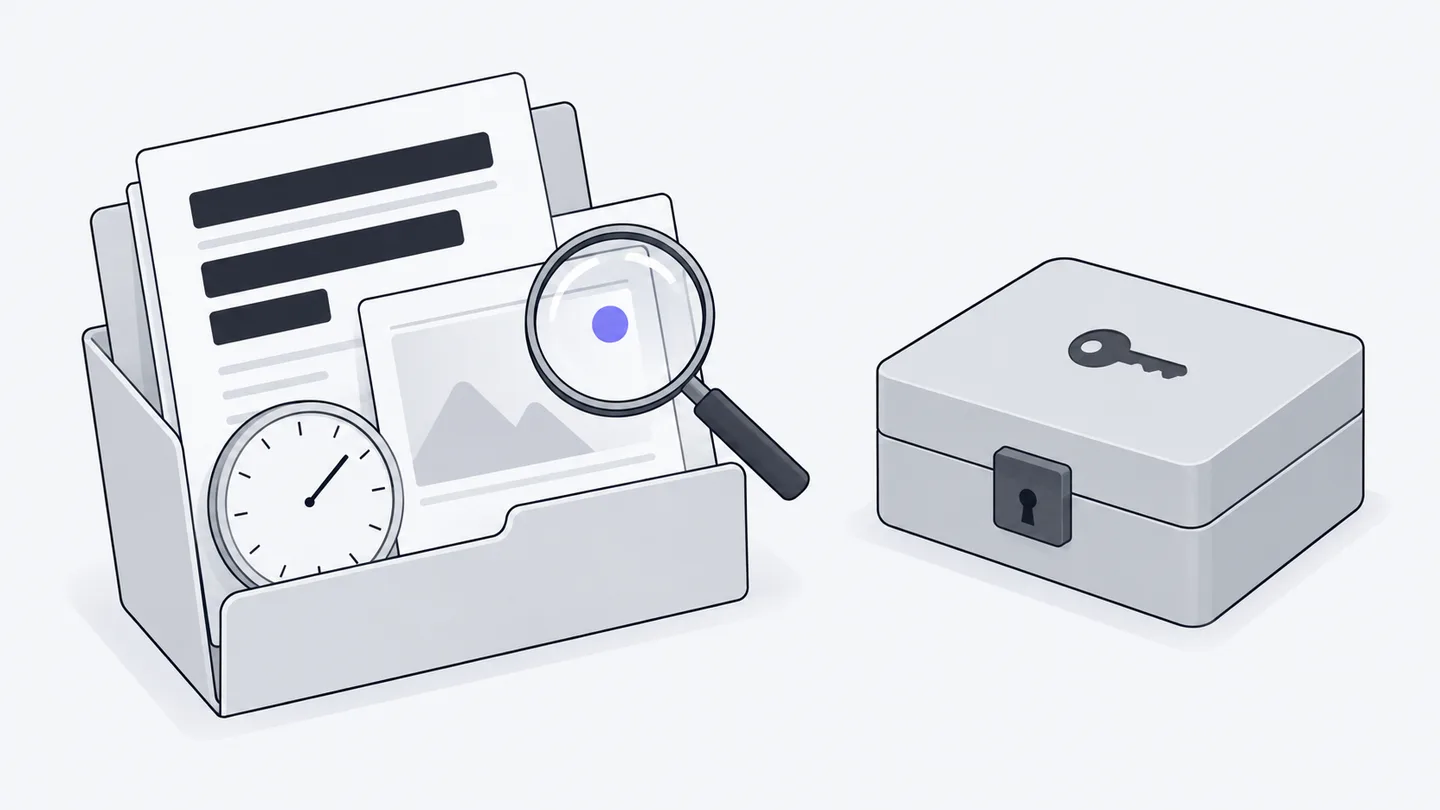
If the problem remains, open “Help and feedback” for tutorials or contact support@agent.space. If an error card offers a reporting action, submit from that task. Do not include API keys, passwords, or unrelated private material.
Copy and fill in this template:
Time of the issue and time zone: Entry point / Workspace / Session: Computer, Agent, and model: Steps I took: Expected result and actual result: Exact error text or a screenshot with sensitive information hidden: Checks already tried and their results:
Reproduction steps and the point of failure help support more than “it doesn't work.” Keep the original files and error information afterward. Avoid several destructive changes at once that could erase the evidence.