Before choosing a model, ask what the task needs: understanding an image, editing files, using tools, or organizing text. The model handles understanding and generation; the Agent connects those abilities to tools and a working environment. Codex and Claude Code are Agent harnesses. You select a model separately in the UI. See Models and Agents for the concepts.
- Agent.Space modelsUse available plans or Flex
- Your model APIBind a provider to the Workspace
- Developer APIUse a Model API Key in another client
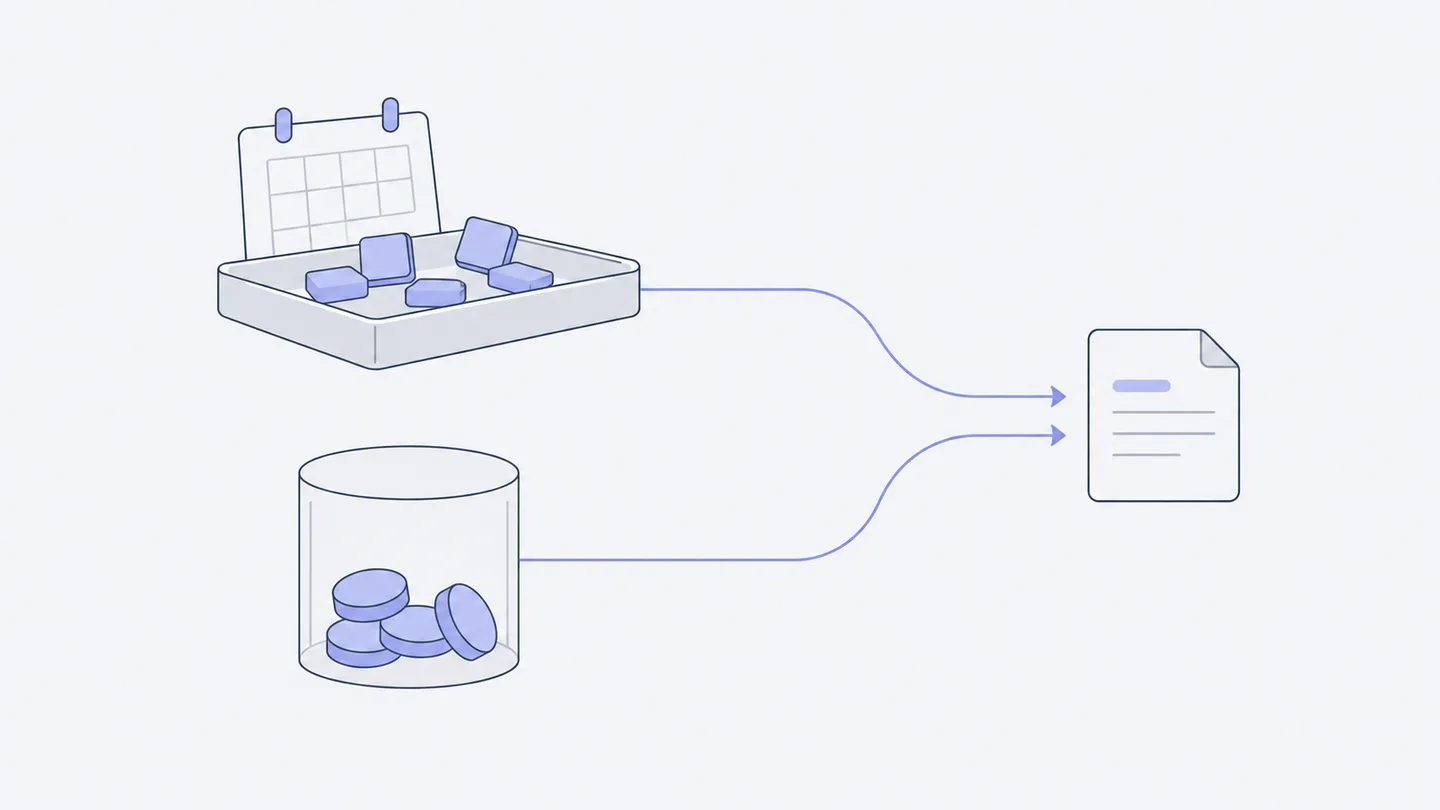
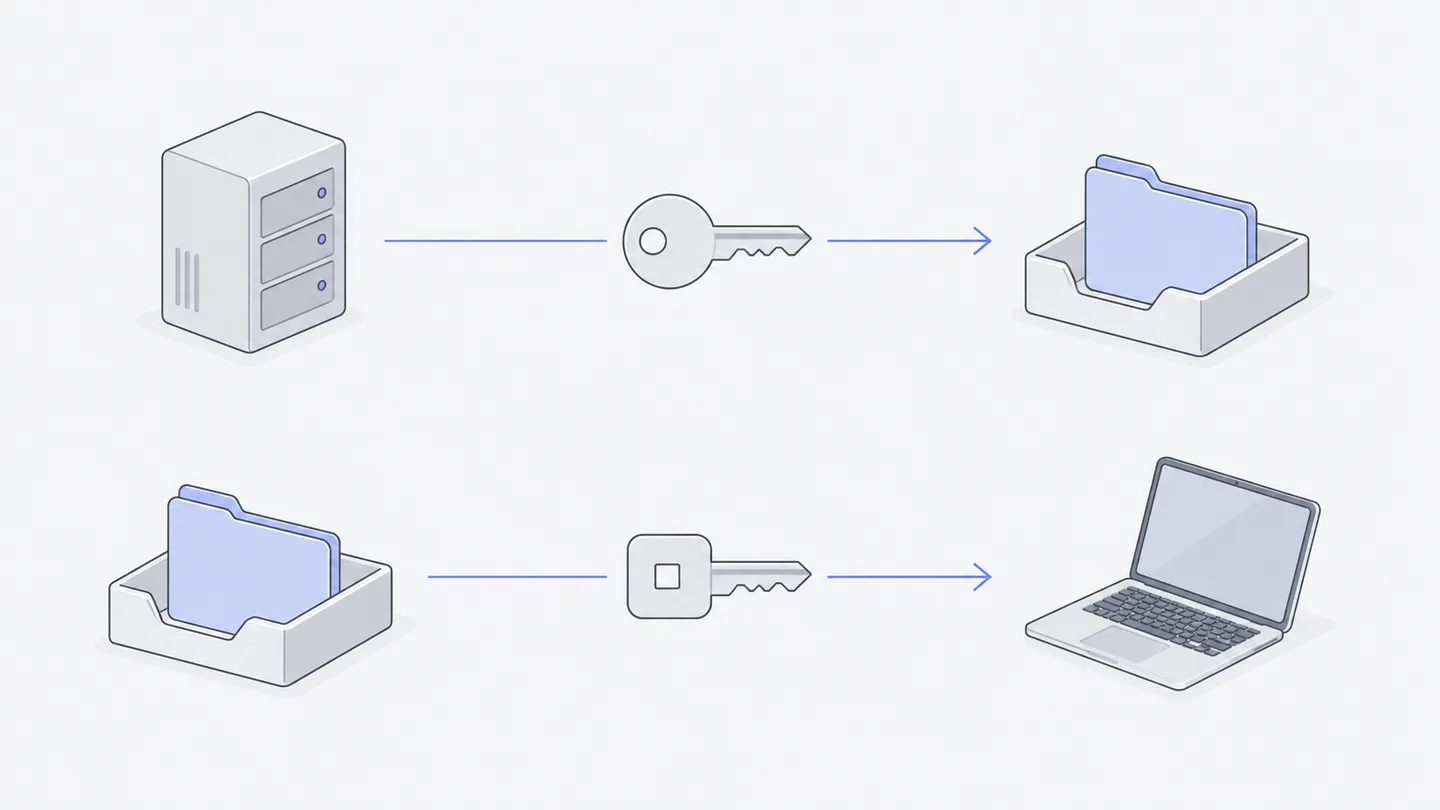
The diagram separates two directions for keys: your own model API brings an external service into a Workspace; a Model API Key makes Agent.Space model services available to an external client. Similar names do not mean the same credential or bill.
Choose an available Agent and model combination
Choose an Agent in a new conversation, then inspect the model menu. A model being listed in the directory does not mean it works with every Agent or attachment. Image input requires support from the model, Agent, and execution entry point. Otherwise the UI asks you to remove the image or change the combination.
Check with a small task before starting a long one:
Read the current webpage file and list the three biggest problems for reading it on a phone. Analyze only; do not edit. Tell me first if you need more tools or materials.
Check whether the reply actually reflects the file and identifies missing materials. To test image support, attach a relevant screenshot and ask about a detail you can verify. Fluent text alone does not prove the material was read.
An existing Session's Agent type cannot be freely switched. Create a new conversation to change Agents, and provide the goal, file paths, and confirmed decisions. Advanced options come from the current Agent, so differing menus are normal. See Make it better for iteration.
Plan allowance, Flex, and the person paying
Open the subscription marketplace to check current plans, included models, remaining allowance, and reset times. Multiple time windows may constrain a plan simultaneously. Having allowance in one window does not mean all windows are available. Allowance is not a fixed number of messages: context, output, and model affect consumption.
An included model with available allowance uses the applicable plan first. Outside the plan or when allowance is insufficient, eligible calls can use Flex credits billed by usage. Flex shows balance, source, and expiration. Promotional and purchased credits do not necessarily have identical uses. A balance does not mean permanent validity or access to every service.
Standard Workspace model calls use the Workspace owner's available benefits. Members should understand this before starting tasks. A local Agent uses the computer's sign-in and subscription; your own model API is billed by the external provider. Dedicated Macs, external API access, and model calls also have their own conditions. A plan name alone does not establish that everything is included.
Prices, model coverage, and availability change. Use the current catalog and payment confirmation page. When comparing options, record four things: required models, typical task size, acceptable wait for resets, and whether usage-based continuation is acceptable. Check effective dates and renewal details before buying or changing a plan. Stopping renewal is different from an immediate refund.
Connect your own model API to a Workspace (BYOK)
This path is for an owner who already has an external model provider's API address and key. Open “Your models” in Workspace settings and choose “Connect model API.” Enter a service name, endpoint, and matching key, then choose models and save.
Before saving, the system tests each model's ability to call tools and continue after receiving tool results. Interface or capability mismatches show a reason. Only models that pass and suit the current Agent become selectable, grouped by provider near the top of the menu. If you add or change them while the cloud computer is running, follow the restart notice to apply the new configuration.
Verify in two steps: inspect test results, then choose that provider's model in a new conversation and complete a small task. Members can use the models but cannot read the key. It is stored encrypted and is not given to members or Agents. Requests go to the provider you entered, which bills the owner; they do not consume Agent.Space plan allowance or credits.
The address and key must belong to the same service. A login password or local subscription account is not an API key. Do not paste keys into chats, public webpages, or project files. If a model is missing, inspect compatibility results and the restart notice. Repeatedly saving cannot repair an endpoint that lacks tool-call support.
Connect an external client with a Model API Key
“Model API Key” under “More” in the sidebar opens the Developer API page. It lets external clients call Agent.Space. It is separate from the BYOK form above and is not a universal key for accessing Workspace files.
The page checks eligibility. A currently valid plan or credit subscription, or unexpired purchased credits, can qualify. Promotional credits alone cannot unlock the API. API eligibility and having enough funds and an available model for a particular request are separate checks. Ordinary Workspace conversations can still use promotional credits when eligible.
In the connection guide, choose a client and available model, create a clearly named key, and copy the complete configuration into that client. For example, name one key personal-laptop and use a separate key for another tool, making usage and revocation easier to identify. Follow the guide's endpoint, protocol, and model identifier rather than mixing similar fields from another service.
A key can have a spending limit and reset period, allowed models, and an expiration date. Limits apply to new requests. No model selection means all models are allowed; an empty date means no expiration. Sensitive actions such as viewing or regenerating a key may require reauthentication. If a key leaks, revoke or regenerate it promptly and update client settings.
After a small request, return to the API page and inspect that key's request history and usage. A client response plus a matching record here confirms the intended service was used. The client might otherwise still be using its previous configuration.
Troubleshoot usage by path
If a model cannot be selected, check Agent compatibility, benefits, and model status. If a task stops for allowance, check every allowance window and valid Flex balance. For rejected API calls, also check eligibility, key expiration, allowed models, and spending limits. For BYOK failures, inspect the external provider's key, endpoint, and billing. For local tasks, check local sign-in and subscription.
When asking for help, include the time, model, Agent, usage path, and error text. Do not include a full key. Clearly stating where the task runs, which service it calls, and who pays usually resolves the issue faster than repeatedly changing models.