You can already ask an Agent to build pages and organize files. Next, you may want to read real data from an external service or keep a weekly result on the canvas. Plugins address how an Agent works and what it can connect to. Bento presents a result that you will continue using.
Begin with a specific need, such as “make project progress readable to the team in a widget.” Avoid installing a long list of capabilities just in case. Know what each one contributes to the current task.
Three names, three roles
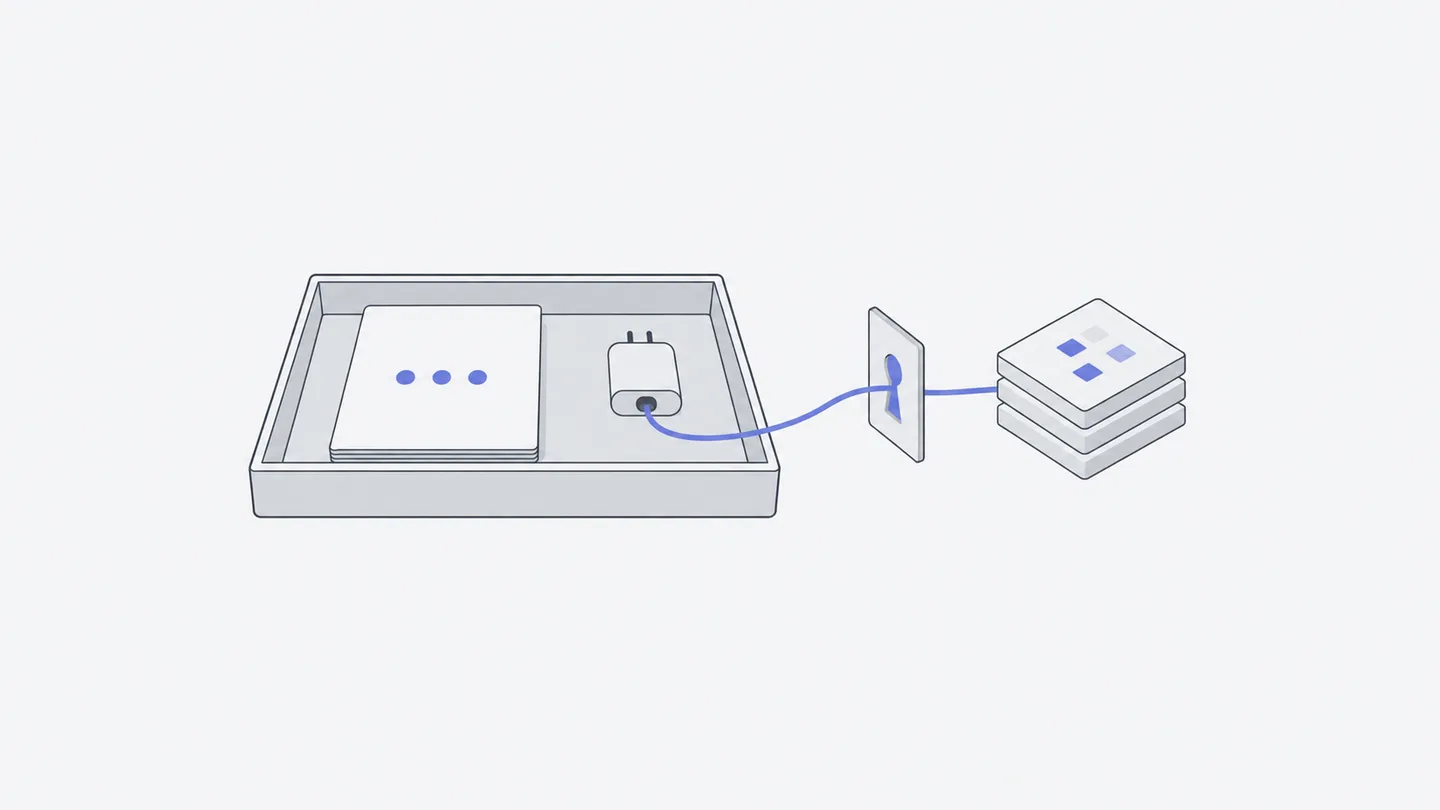
A Skill does not automatically grant access to an external account. A plugin containing MCP may still need a service connection. Your Agent harness is the execution entry point; your Model is the model you select. Both are separate from plugins.
- SkillA repeatable way to do a task
- MCP connectionTools for an external service
- BentoAn interface for a useful result
Follow two relationships in the diagram: a plugin organizes methods and tools that the Agent uses; Bento turns a result into a visible, maintainable widget. A number displayed in a widget does not by itself prove that its data source is connected.
Install, then verify the connection
Open the intended workspace and choose “Plugins” directly in the sidebar. The main page has “Installed” and “Discover plugins,” with search by name, scenario or Skill. Open a plugin, read its suggested uses and contents, then install what you need. Owners and editors can install, update and uninstall; viewers do not have the same management actions.
After installation, return to “Installed.” For an external connection, inspect “Connections” in the details. It may require no connection, need configuration, need OAuth login, or support only a particular Agent harness. Select the relevant “Connect …” action, follow the service’s login flow, then return to confirm its state.
Think of permissions in two layers: your workspace role determines whether you can manage plugins, while the external account and its authorization determine what a connection can read or write. During login, check the service, account and requested access. Use shared-workspace plugins for the purposes your team has agreed on.
Verify with a small, specific read:
Use the project service I just connected to read the five most recent work items in my specified project. List each title, state and source link. Read only; do not modify anything. If this Agent harness does not support the connection or authorization is missing, say so clearly and do not substitute sample data.
Accept traceable data, not merely a plausible answer. Open one source link and check its title and state. Do not connect the result to an automatically updated widget before a real read succeeds.
Use advanced sources when you know what you need
“Advanced” at the upper right of Plugins offers Skills, MCP Servers and Agent Plugins. Independent Skills can be imported through supported links, folders or archives. Remote MCP uses an HTTPS service endpoint and form-based configuration. Agent Plugins support folders, ZIP files and public GitHub repositories.
These routes suit people who already have provider instructions or a team-approved resource. For ordinary use, start with a complete plugin in “Discover plugins,” where its contents are easier to inspect. A regular webpage URL is not an MCP endpoint, and knowing a plugin’s name does not mean it is installed.
Use “Update” or “Update all” explicitly when needed; installation does not promise automatic upgrades. Uninstalling removes the plugin from this workspace but does not revoke third-party account authorization. To stop that access too, use the service’s own authorization management.
Build your first Bento
A Bento is a widget in Dynamic view, such as a progress card, metrics display or frequently used information panel. Creation is currently offered in cloud workspaces; workspaces connected to a personal computer do not provide the same widget-creation entry. Confirm that the required plugin and data connections are ready.
Choose “New widget” at the bottom of Dynamic view to open a chat with a Bento creation request. You can also explicitly request the Bento Plugin in a chat. Start with input you can easily check before considering live data or scheduled updates:
Use the Bento Plugin to create an “Event preparation progress” widget. Read
event-progress.csvin the workspace and show the total task count, completed count and names of unfinished tasks. Display the data source and update time. Read the real file first and tell me if fields are missing. Let me view the result in Dynamic view, and explain which chat to use for future maintenance.
Put a real CSV in the workspace first, or ask the Agent to save one from a real task list you provide. Copying a nonexistent path does not give the system your data. Reading three to five rows correctly is enough to test the first complete version.
Check display, data updates and maintenance separately
Once the widget appears, compare its total and completed counts with the source file, then check whether long task names remain readable. Right-click the widget and open “Widget details” to inspect maintenance Sessions and interface versions. Use “New session” for a fresh chat, or “Choose a session” to continue an existing one.
A widget is not tied forever to its original chat. Selecting a maintenance chat through its details associates later instructions with the particular result. You can preview earlier interface versions and restore an interface if necessary. Do not interpret that as undoing changes in an external service’s data.
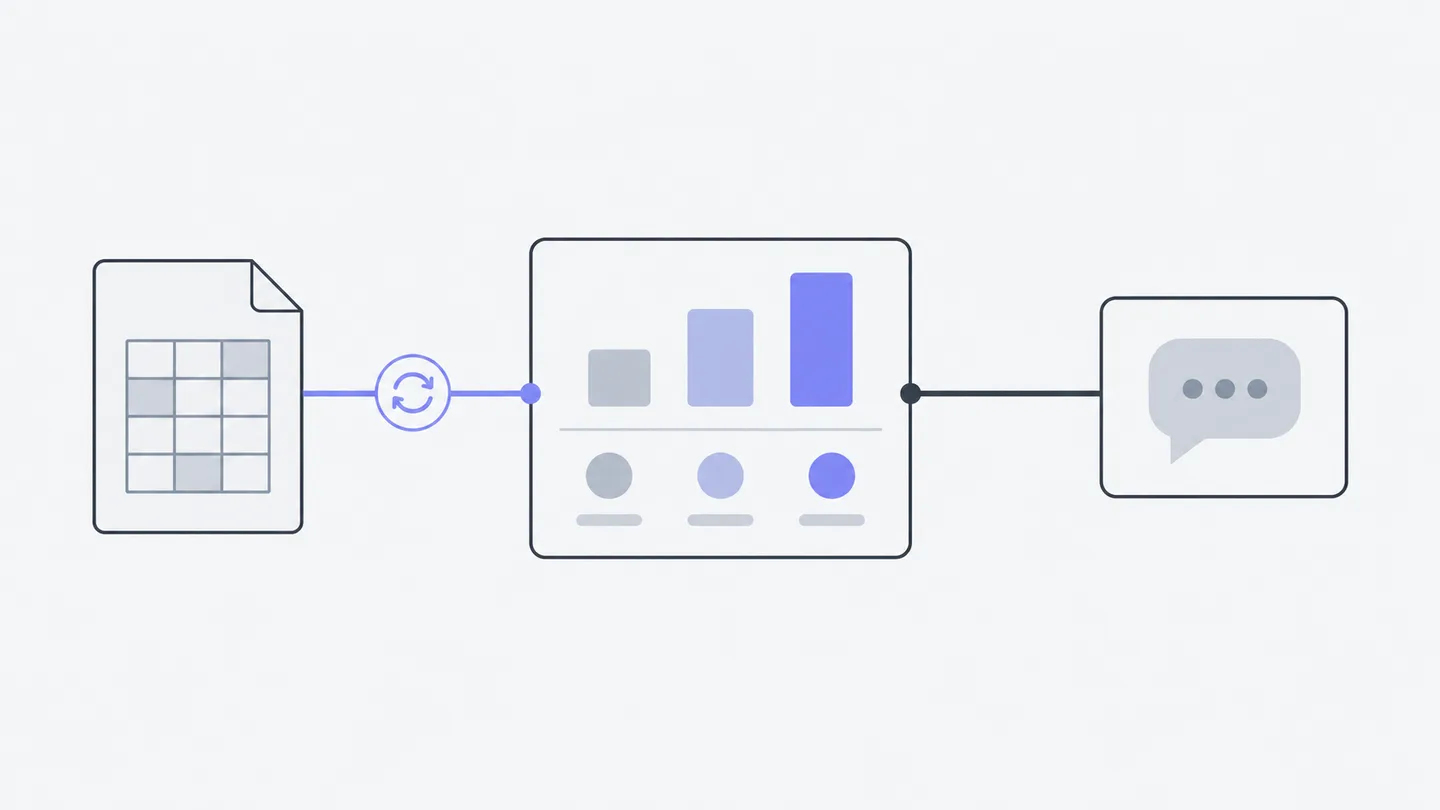
Maintain this “Event preparation progress” Bento. Keep its data source and calculations, but group unfinished tasks by owner. Explain which display elements will change before updating the interface. Afterwards, verify the total is unchanged and identify the maintenance record.
Widgets can report healthy, stale or failed data updates. An attractive interface does not prove that background data retrieval succeeded. For daily updates, separately specify the source, execution time and maintenance task; placing a card on the canvas does not create a schedule.
Work backward when something fails
If a plugin is missing, check the workspace and Installed list. If a connection is unavailable, check configuration, OAuth and harness support. If a Bento lacks data, check the source file or external read before inspecting its update state. If only the interface needs work, request specific changes in its maintenance chat.
You have completed this chapter when one real capability call succeeds, one widget displays verifiable data, and its maintenance chat is easy to find. To deliver outside the workspace, read Preview and share and choose between files and a public site.