The invitation page needs a file. Editing that file takes tools, and some steps need a program to run. All of that has to happen on some computer.
When you use an Agent locally, you might need to install software, set up an environment, and decide which folder the project goes in. Agent.Space moves that work environment to the cloud, and you get in through your browser.
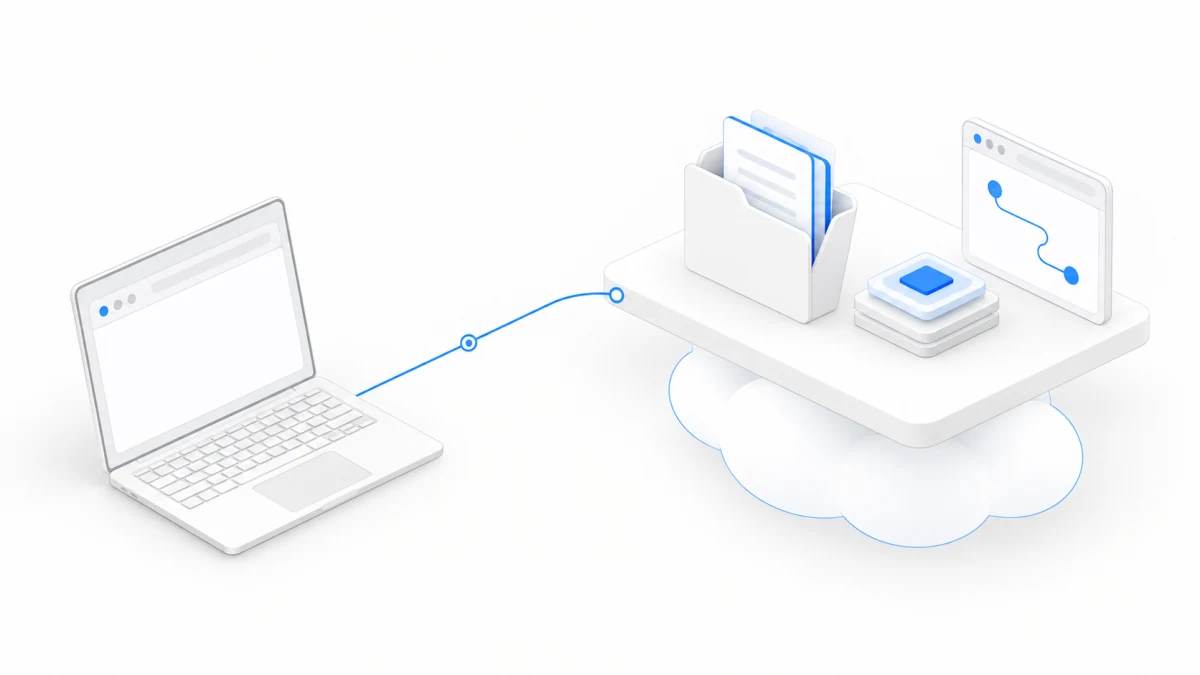
For now, think of it as a workbench in the cloud, set aside for this one project. The files, conversations, and people involved all gather around the same project.
The browser is the window; the work happens in the cloud
In your browser, you make requests, watch the progress, and look at files. The Agent does the work in the cloud environment, using the model you picked to understand the task.
That means you don’t have to install Codex or Claude Code on your own computer for this invitation page, or figure out how to set up developer tools first. “No local install” here means using these existing abilities through Agent.Space. Actually running tasks still takes an account, a compatible setup, and available usage.
The interface calls this machine the “Cloud computer.” What you get is a work environment organized around files and tasks; you don’t have to drive a whole remote desktop or learn to manage a server. The “Cloud computer location” you choose when creating a Workspace decides which region it and the Workspace files live in. Pick a region close to you and your friends; it can’t be changed later.
A Workspace gives the project a home
A Workspace is the project’s shared home base: it holds the project files, Agents, conversations, members, and more.
You might name this project “Weekend Walk Club.” Even if a different Agent helps out later, it’s still the same project. No need to rename it after whatever tool you’re using.
Inside it, a Session is an ongoing conversation with an Agent. Asking it to write the page today and coming back to the same conversation tomorrow with changes both count as continuing work on the same project. One Workspace can also hold several Sessions.
One little picture is all you need: the Workspace is the whole project, a Session is one working discussion about it, and the files are what actually gets left behind.
Closing the tab isn’t throwing out the project
Closing your browser tab doesn’t delete the project files and conversations that have already been saved. Next time you open the same Workspace, they’ll be waiting. On another device, you can sign in with an account that has access and keep going.
But “you can get your files back” and “every program runs forever” are two separate things. The cloud computer starts up when needed and goes to sleep after it’s been idle for a while. A task can also stop because it needs your answer, ran out of usage, or hit an error. When you come back, check the current status first, then decide what to do next.
For example, once the invitation page file is saved, you can keep using it later. But if a temporary development server has stopped, you might need to ask the Agent to start it again; having had a preview address once doesn’t mean it’s still online. If the cloud computer occasionally gets stuck, editors and owners can restart it from “Workspace settings” under “More.” Files, chat history, and queued tasks are all kept, and any task that was running will try to pick up where it left off.
Know where the materials you hand over end up
“I sent it to the Agent” and “it’s saved in the project” aren’t always the same thing. An attachment in a conversation is input for that one request. For materials you’ll need again and again, ask the Agent to explicitly save them as Workspace files, then check for them in the file list.
Our invitation page works the same way: have the Agent save the result as index.html, then find that file. A big block of code in the chat doesn’t mean this step is done.
You can also let the Agent use your own computer
The cloud computer is the default, but it isn’t the only option. Below the input box, there’s a button for picking a computer, which decides where the Agent in this conversation works:
- Cloud computer: the default, with nothing to install. This tutorial uses it throughout.
- Your own Mac: once you install the Agent.Space Mac App and connect it, you can use the Claude Code or Codex already installed on that Mac, on your own subscription. Or you can let a cloud Agent read and write a folder on that Mac, which spends credits based on usage.
- Dedicated Mac: if you need a Mac that’s always online, you can rent one here, and it joins the Workspace just like your own Mac would.
When you use your own computer, the Agent is working with real files on that machine, so look a little more carefully before you approve anything. For your first invitation page, sticking with the cloud computer is the easiest way to go.
Later, others can pull up a chair
Files in a Workspace can be shared by authorized members and by multiple Agent Sessions. A friend can look at the same invitation page and give feedback, and another Agent can read the current file and keep helping.
That said, sharing files doesn’t mean every conversation gets shared automatically. When you switch to a different Session, it’s best to spell out the goal, where the files are, and what’s already been decided. With several people involved, agree on who’s editing which part.
You don’t have to learn all of this at once. In the next chapter, we’ll create a Workspace for the Weekend Walk Club and give it its first real file.