The invitation page is almost done. You’re picking a color for the heading when Sam asks, “Are we still walking if it rains?” Maya jumps in: “What I really want to know is whether I can sit down halfway.”
Perfect. The people who’ll actually show up are starting to weigh in.
In this chapter, you’ll bring both friends into the Weekend Walk Club Workspace. You can talk things over in the same Agent conversation, or each start your own conversation and have different Agents work on different things. The files, discussions, and results all revolve around this one project.
This time, let’s try a small division of labor: you handle the page, Sam checks the information, and Maya plays the friend who “got the invite and just wants to know how to join.”
1. Invite your friends into the same Workspace
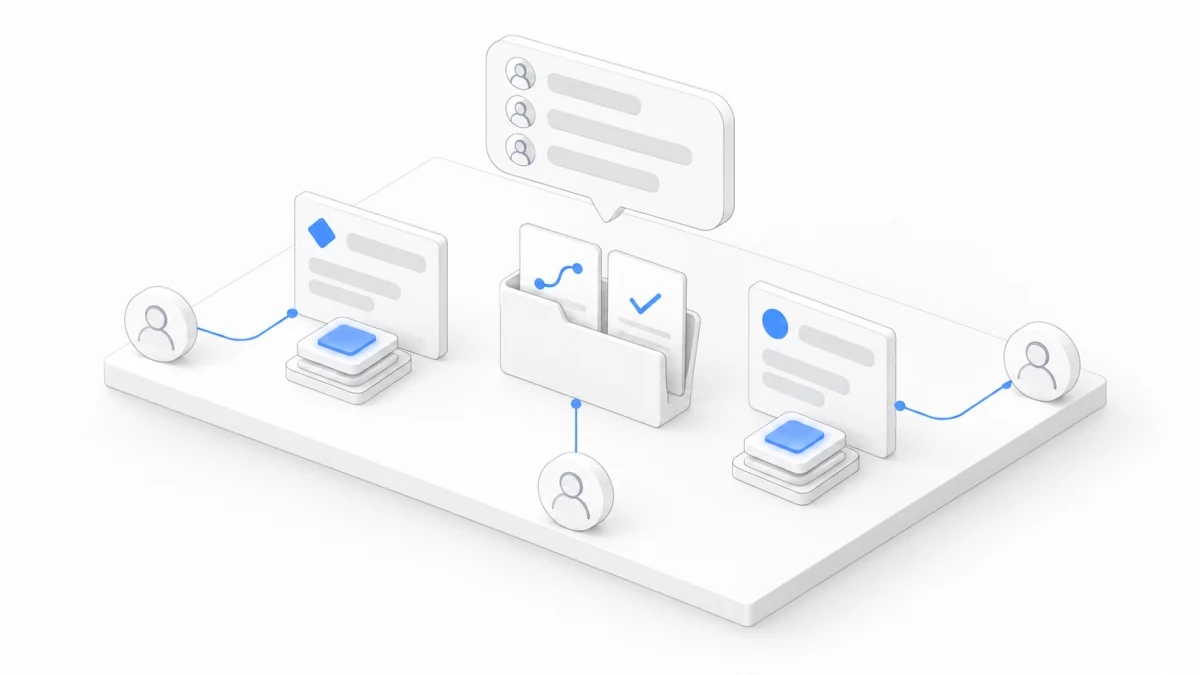
Click “Members” in the left sidebar to open “Members and permissions.” Click “Create invitation link” for the role your friend needs, then send them the link; you can also share a QR code. Your friend signs in with their own Agent.Space account and accepts the invitation to join. An invitation link is valid for 7 days, and several people can join with the same link.
The three roles break down like this:
- Editor: can edit content and call on Agents. Pick this when someone needs to send tasks and edit files with you.
- Viewer: can only look, and can’t call on Agents. Good for people who just want to see the result.
- Owner: manages the Workspace and its members, creates or revokes invitation links, and pays for this Workspace’s Agent usage. When friends join, the invitation page spells out who covers the cost.
For this exercise, Sam and Maya both need to take part in the conversation, so make them Editors. Once they’ve joined, ask them to check two things: that they can find weekend-walk/index.html in the files area, and that they can open the conversation where the invitation page was made.
An invitation link is for joining the Workspace, which includes the shared files and conversations. If you just want to show someone the finished page, go back to the sharing options in the last chapter.
2. One conversation that everyone can join
An ongoing Agent conversation is called a Session. It belongs to the Workspace: members with edit access can open an existing Session, see what happened earlier, and add requests of their own. Whoever started the conversation isn’t the only one who can keep it going.
Say you made the webpage with Codex earlier. A discussion might go something like this. It’s just an example, and the actual replies will be different:
You: Please look at the current index.html. What else might first-timers want to ask? Let’s just discuss for now. Don’t change the file.
Codex: You could make “If it rains, we’ll reschedule” stand out more so readers don’t miss it.
Sam: Agreed. Can you try a more lighthearted reminder that still says we’ll reschedule?
Codex: “If it rains, we’ll save the walk for a sunnier day.”
Maya: I like that. Can you also check whether the page says people can rest when they get tired? Don’t change anything yet.
The chat shows who each member is, so everyone can follow the thread of suggestions and replies. Sam picks up right where your request left off, and Maya can add what matters to her.
Sending something in an Agent conversation hands it to that Agent to handle. “Let’s just discuss for now” is a task too: the Agent will read and reply, and that can count toward model usage. If you want opinions first, say so clearly; once you’ve decided, then let it get to work.
If it’s busy, new messages go into a queue shared by all members, each labeled with who sent it, and they enter the chat when their turn comes. Waiting for a reply before you keep talking is the easiest way to keep pace in your first collaboration. Stopping the current task and approving its permission requests are up to the person who started that task; the owner can also stop tasks.
3. Each call on an Agent and split up the work
Once the discussion has a direction, you can divide up the work. You keep calling on Codex in the original Session. Sam starts a new Session in the same Workspace and picks Claude Code, as long as it’s currently available, along with a compatible model.
Different Sessions can work in parallel, so Sam doesn’t have to wait for your task to finish before starting. Switching to a different Harness takes a new Session, and the project files stay right where they are.
If you want to keep an eye on both conversations at once, open “Canvas” (Beta) under “More” in the left sidebar, and drag the two conversations in from the sidebar. The Canvas is one big tabletop shared by the whole Workspace, so everyone sees the same layout, and you can keep sending messages right from the conversation cards.
These roles are set up to make the exercise easy; Codex and Claude Code can each handle building or reviewing. Just choose from the Agents and models currently available.
You can give the Agent working on the page this request:
Sam can send this in the new Session:
review.md is a plain text note. It’s saved in the shared files, so the next person can read it right away, and it can be handed to the Agent doing the edits later on. We put it in the root instead of in weekend-walk because that folder may be published as a whole website later, and the review notes don’t need to go public with it.
4. Everyone sees the same file, so agree on who edits it
Now the page and the review notes are both in this Workspace. You can see the suggestions Sam had the Agent write, and Sam can open the invitation page you edited.
There’s no private draft called “your index.html” and another called “Sam’s index.html.” Everyone is working on the same current file. That’s why, this time, only one Agent edits the page while the other writes a separate review note. If both rewrote the same file, they could overwrite each other’s changes; the Workspace won’t automatically merge every conflict for you.
Once both tasks are done, read review.md together, pick the suggestions you want to use, and hand them to the Session in charge of the page:
This step also catches cases where something “wasn’t fixed during the review, but is now.” Once you’ve confirmed, give the specific edit request. When it’s saved, Maya opens the file to check it. If you’re looking at the site, click “Update preview” as in Chapter 7, so all three of you see the same version.
5. People can scroll back through the discussion; Agents still need a handoff
Members can view shared conversations within their permissions. An Agent in a new Session won’t automatically know everything discussed in other Sessions. Both of these are true at the same time.
So when Sam starts a new conversation, the request needs to spell out “this is a fictional invitation page, don’t add a sign-up form,” and the Agent doing the edits needs to be told explicitly to read review.md. Shared files give a handoff somewhere to land, but the specific task and the decisions already made still need to be spelled out.
If Maya takes over tomorrow, she can open the existing Session and keep going, or start a new Session with this short handoff:
The page is at weekend-walk/index.html, and the review notes are in review.md. The meeting time and route are confirmed. Please read the files first, then tell me which suggestions are still open. Keep the sample label, don’t add a form, and don’t publish yet.
Teamwork across several Agents starts with one clear division of work and one handoff like this. Who does what, and who it goes to next, is up to you.
Next time, bring your own crew
You’ve now finished a small collaboration: talking it through in one conversation, each calling on an Agent to work in parallel, then coming back to the same project to check the results.
That’s where Agent.Space makes life easier, too: friends join with their own accounts and can keep working from the existing files and discussions; everyone brings their own judgment to the Agents they call on, and the results stay in the same project. The next time someone takes over, it’s easy to find where the page is and what’s changed.
A book club, a dinner with friends, a small tool: they can all start this way. You get it going, someone adds ideas, someone spots problems, and the Agents help get it done.
Once you’re comfortable, try two more things under “More”: Scheduled tasks (Beta) automatically sends the same request to an Agent on a schedule you set, like reminding everyone every Friday to confirm the headcount; and on the Canvas, an Agent can build Widgets, little dashboards that refresh as your data changes. Both are still in Beta, and the interface may change at any time.
Start your next project together. As for this walk, whether to bring snacks is for the club to decide.