One colleague asks an Agent to revise an invitation page, another prepares the registration sheet, and you check the event details. Three separate chats can get this done, but make it harder to see the whole picture. Dynamic view puts those chats, related files and widgets on one canvas so the team can follow parallel work.
The canvas shows work and provides a way into it. Requirements, discussions and results still live in their original chats. Placing two cards together does not automatically hand work between Agents or decide who owns a task.
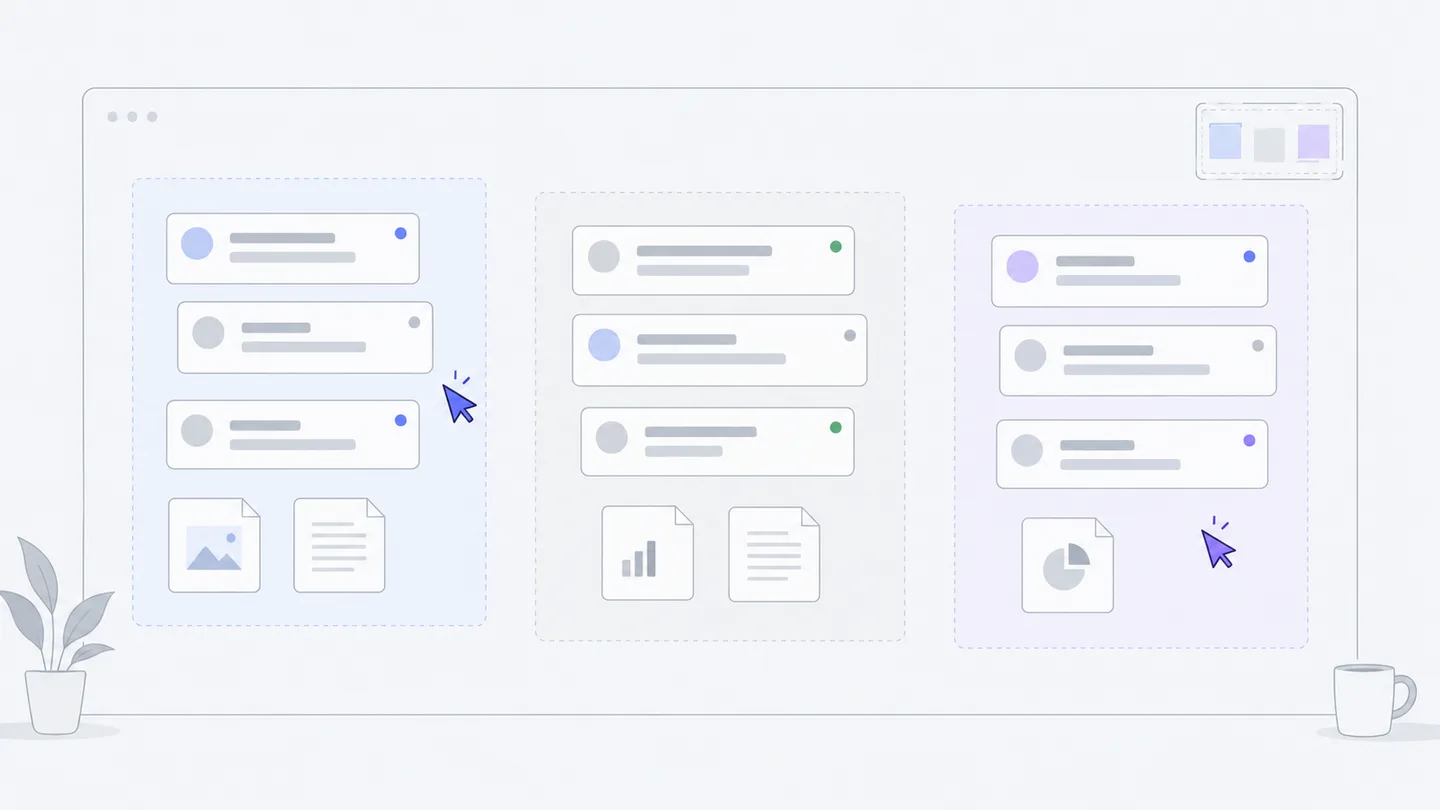
Start with real work
Join a workspace first. Owners and editors can add, move and organize cards; viewers can inspect and locate existing work. Start with two or three chats that have clear goals, rather than an empty organization chart. See Work together for invitations and roles.
Choose “Dynamic view” in the sidebar. It uses the same chats as the chat list, so there is no need to copy messages. “Add existing” at the bottom brings back chats or widgets that are off the canvas. Project files can also go on the canvas, placing a result next to the discussion that produced it. “New chat” starts the next piece of work.
- See the wholeGroups, people and running Agents
- Find what needs youApprovals, results and mentions
- Enter the workOpen the conversation and continue
The diagram moves from seeing the whole project to finding what needs attention and entering the work. Group parallel tasks such as content, design and registration. “Needs you” at the upper left of the canvas belongs to the person currently signed in. Use groups to find an area, then attention items to find an action, instead of opening every chat.
See the same work from another angle
The “View” switcher at the top on desktop offers “Map,” “Timeline,” and “People & Agents.” On a phone, find “View” in the bottom “More” menu. When you are not typing in a field or holding Ctrl, Command, or Alt, press 1, 2, or 3 to switch to these views respectively.
- Map keeps the positions where you manually placed conversations, files, and Bento widgets, helping you organize results alongside their discussions.
- Timeline shows conversations active within the last 14 days, arranged by group. Bars are drawn from creation to the latest activity; they do not mean an Agent ran continuously for that period. Click a bar to open the conversation, or a group name to return to that group on the map.
- People & Agents arranges rows by who started each conversation, with your own row first, so you can review active conversations and recent results. This shows who initiated the work, not every participant in each conversation.
Your view is a personal preference. Switching it does not change anyone else’s view or the shared card layout. Timeline and People & Agents show conversations only; return to Map for files and Bento widgets.
Organize, then look closer
Drag a card by its handle to move it. Pinch on a trackpad to zoom; hold Space and drag to pan across cards. Zooming out reveals group overview plates with group names, work waiting on you, running work and participants. Click a plate to enter its group, then zoom in to read cards. The running count at the upper right shows how many chats currently have an Agent working. For full context, choose “Open in chat” from a card menu.
Hold Shift and click to select several cards, or Shift-drag to select a rectangle. You can then group the selection or remove it from the canvas. Keep work for one deliverable together—for example, invitation copy, invitation design and invitation review—without making every message a separate card.
Add a group through the group controls, choose its color and give it a name. You can also drag a group’s colored ball onto a card. Click its name to rename it, or its ball to locate the group. Use project or owner names your team has agreed on, such as “Event website” and “Registration data.” Color helps recognition; it does not grant ownership or permissions.
Card layouts and groups affect the team’s shared canvas. In particular, “Clear canvas” removes cards from everyone’s view, so make sure that fits the team’s arrangement. It does not delete the chats or widgets themselves; “Add existing” can bring them back.
Check “Needs you” first
“Needs you” is calculated for each member, rather than sending the entire team’s reminders to one person. It collects three kinds of item: an execution you started needs your approval; work you started has a recent result awaiting attention; or someone mentioned you in a discussion. Result reminders cover qualifying results from the past three days, with each chat listed once.
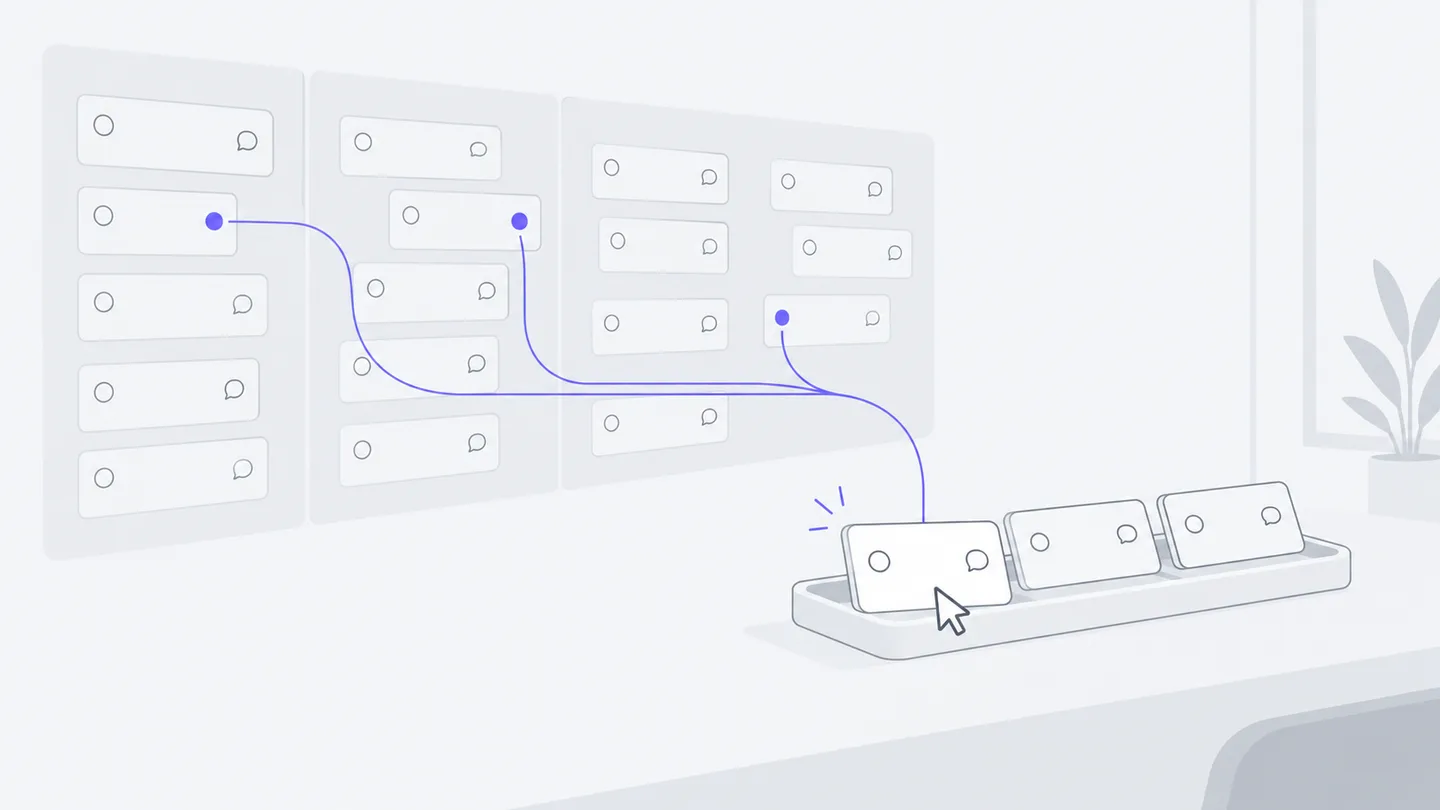
The panel initially shows five items. Open the “more” entry to see the rest. Selecting an item locates its card, or opens the chat if the card is off the canvas. A missing card does not mean nothing needs attention.
Press J for the next item and K for the previous one. These shortcuts do not run while you are typing in a text field or holding Ctrl, Command or Alt. Review results in sequence, then return to the chat that needs a specific response.
“Dismiss” hides that particular reminder. It does not approve a tool action, complete the task or silence future reminders from the chat. Do not use it as an acceptance button before checking the result. Handle approval, replies and requested changes in the relevant chat.
Coordinate people and Agents
When other members are also on the canvas, their labeled cursors show where they are looking. A cursor indicates position, not that someone is editing a file, and it is not a file lock.
Write task boundaries into chats to make the canvas useful for collaboration. Agree that one colleague owns copy, another owns visuals, and you own review; then put the three Agent chats in one group. During handoff, name the file and expected result instead of saying “look at the one on the left.”
Check the event information in
weekend-walk/index.html. Review only the date, time, location and registration entry, and list any problems with the relevant text. Do not edit files yet; I will pass confirmed issues to the colleague responsible for the page.
This creates a focused review chat: it identifies the shared result, limits the scope and produces findings someone else can use. If several people need to edit the same file, agree on an order in the discussion before issuing instructions against different versions.
Why cards become fewer
Dynamic view maintains a current working set. Chats that are running, need the current member’s attention or are pinned stay visible. So do chats that someone wrote in or moved during the past three days. Placed chats with no activity for more than three days fold into their group’s collapsed list; after fourteen days they leave the working set. Click a folded entry to restore it to its position.
This tidies the view without deleting history. You can still find the original chat in the chat list. Cards explicitly removed from the canvas do not return merely because of ordinary recent activity; use “Add existing” when needed. Since each member has different attention items, their current working sets may also differ.
Verify with a small exercise
Create or choose three chats, put them in two groups and place a result file next to its related chat. Ask a colleague to open the same canvas and confirm the groups and positions. Each of you should check “Needs you” and understand why the lists need not match. Finally, open a chat from its card and leave actionable feedback.
If a card is missing, check its group, the folded list and “Add existing.” If you cannot add or move cards, check your workspace role. Groups can show card counts, waiting counts and folded items; these are not Agent-written project summaries. Overview plates already provide a group overview, but list chat titles and states rather than an automatically written progress sentence. They do not infer a project’s dependency map.
Next, use Plugins and Bento to turn frequently checked data into a canvas widget: chats move work forward, and results make it visible.