You’re finally happy with it and ready to show your friends the invitation page. You copy the address from your browser and send it over, but your friends say it won’t open.
Before you ask the Agent to rebuild the site, hold on. What you copied is most likely an address inside your own Workspace. Seeing a page in your own Workspace and other people opening it through a public link are two different things.
First, tell these four things apart
These four can all show up in the same project, but none of them proves another one is done. That goes double for “Published”: trust the status actually shown on the site and the public link, not a summary in the chat.
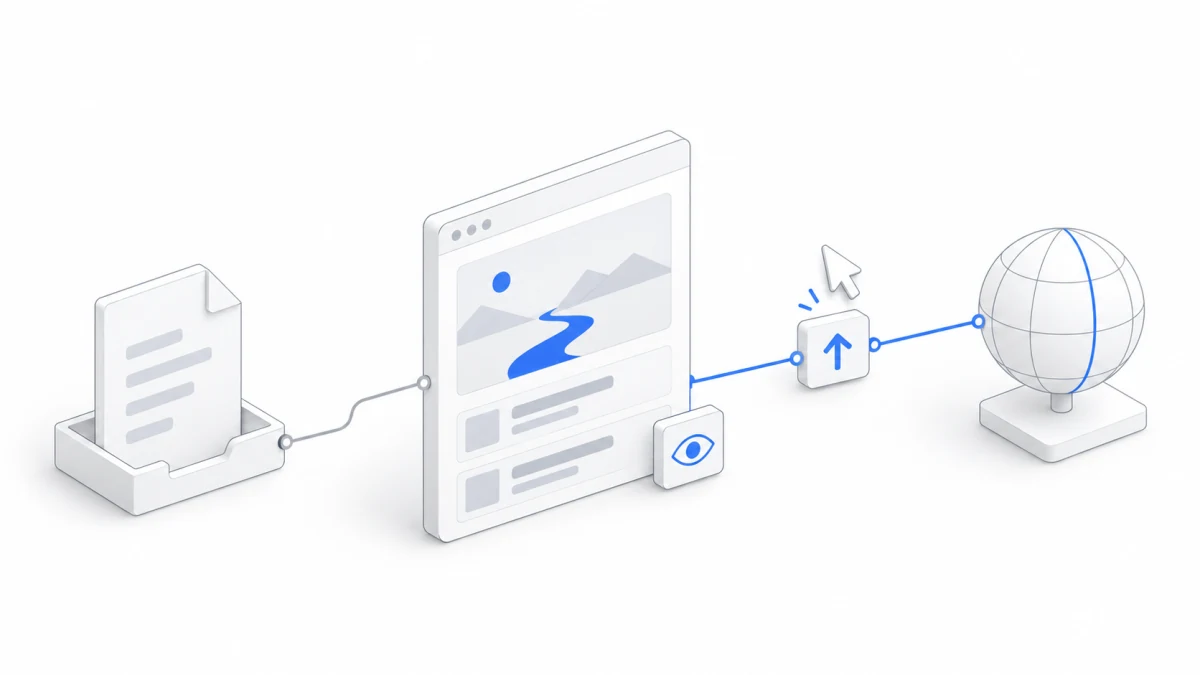
File preview vs. full website preview
Click index.html in the files area, and you’ll see the file preview. It works well for checking a self-contained single page like ours. If the page needs to load other files or external resources, the preview will say “Some content requires the full website preview.”
A full website can be made up of several files. In that case, click “Preview full website” above the file preview, and Agent.Space prepares the whole webpage folder as a site and opens it on the right side of the conversation. The top reads “Website directory: weekend-walk · Workspace members only.” That’s why we put the page in its own weekend-walk folder. If the file sat in the root of the Workspace, you’d see “The full website needs a dedicated directory.” instead, and you could click “Ask Agent to organize website” to have the Agent move it into a folder.
Sites you’ve prepared can always be found later under “Sites” in “More” in the left sidebar. A website the Agent prepares in a conversation also gets a card in the chat, and that card always shows the version from that round.
After editing files, remember to update the preview
A site keeps the version from the moment it was prepared. If you edit the source files later, clicking refresh on the site toolbar just reloads that same version; it won’t magically turn into your new work. You need to click “Update preview” and wait for the new version to be ready.
It’s like exporting an invitation as a PDF, then going back and editing the original. The original changed, but the PDF you already exported needs to be exported again.
To make sure you’re seeing the new version, reuse the change from the last chapter: check whether the meeting time has moved under the heading. If the file has it right but the site still shows it at the bottom, update the preview first. Don’t have the Agent edit the same file a second time just because you were looking at an old version.
Sometimes the Agent starts a development server for debugging, and a webpage marked “Development preview” appears in the chat. It depends on that server running and can stay up for a few hours at most. Once the server stops or the Workspace goes to sleep, you’ll need to have the Agent run it again. Opening it once doesn’t mean that temporary address works forever.
Keep a copy on your own computer
In the files area, click the “…” menu on the index.html row and choose “Download file.” This task asked for a self-contained page with no external resources, so once it’s downloaded, you can open it straight in your own browser.
If you later make a page with multiple files, like images and scripts, you’ll need to bring its dependencies along, too. The files area downloads one file at a time; if you need a whole folder, you can ask the Agent to pack it into a zip file.
Downloading is good for keeping your own copy or handing the file to someone else. What they get is a copy; if you edit the original in the Workspace later, their copy won’t update by itself.
When you’re ready, decide whether to publish
First go through the version you want to share in the site, then click “Publish site” on the site toolbar. The confirmation window reminds you that anyone with the link can visit, and that later edits to your Workspace draft won’t automatically change the public site. If everything looks right, click “Publish.”
Once it’s published, the site is marked “Published,” and “Copy public link” and “View public site” appear next to it. The public link is a fixed address that stays the same even when you publish updates later. Copy it and open it once in a browser window where you’re not signed in, to make sure what others see is exactly what you meant to share.
Publishing makes this version visible to the world, so check the sample event once more first. Since this is fictional practice, the “Sample event” label and the note about the fictional location should stay. If you switch to a real event, double-check the date, place, and contact info.
Later edits don’t change the public version on their own
When you keep editing later, the order is: edit the file → “Update preview” → check the new version. At this point, the site shows “Unpublished changes,” meaning the version you see in the Workspace is newer than the public one. Once you’ve confirmed it looks good, click “Publish update,” and only then does what the public sees switch over.
In the “Publish and share” window, you can also see the versions you’ve published before, roll back to an earlier version, or take the site offline. If you need it again after taking it offline, you can publish it again.
You can also hold off on publishing for now. Building the page, saving the file, and checking the preview already make a complete first practice run. In the next chapter, we’ll invite friends into the Workspace: you’ll talk it over in the same conversation, each call on an Agent to split up the work, and then check the invitation page together.
For a deeper dive, read the guide to previewing, publishing, and exporting.