




Setup guide
Pick where you want to control this Mac from, then follow the steps.
Download for MacMac with Apple silicon · macOS 14 or later
Needs an Agent.Space account. Once set up, control this Mac from a browser on any device.
- 1
Install Agent.Space on the Mac to control
- On this Mac, click “Download for Mac” at the top of this page to get the installer (a .dmg file).
- Open the .dmg and drag Agent.Space onto the Applications folder beside it.
- Open Applications and double-click Agent.Space. If macOS asks whether to open an app downloaded from the internet, click Open.
- Agent.Space stays out of the Dock. It lives on the right of the menu bar at the top of the screen, as the Agent.Space mark; its Dock icon shows only while one of its windows or a remote connection is open. Its panel opens by itself the first time; after that, click the mark.
- 2
Connect this Mac to your Workspace
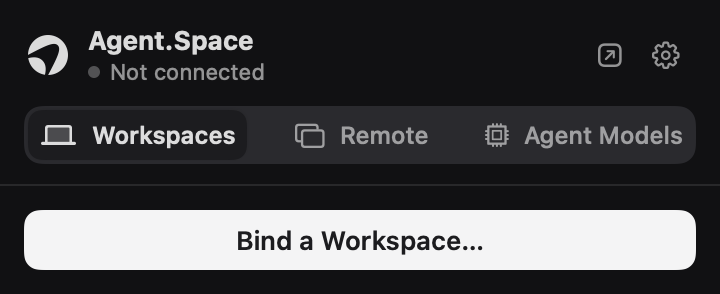
- In the panel, under the Workspaces tab, click “Bind a Workspace…”.
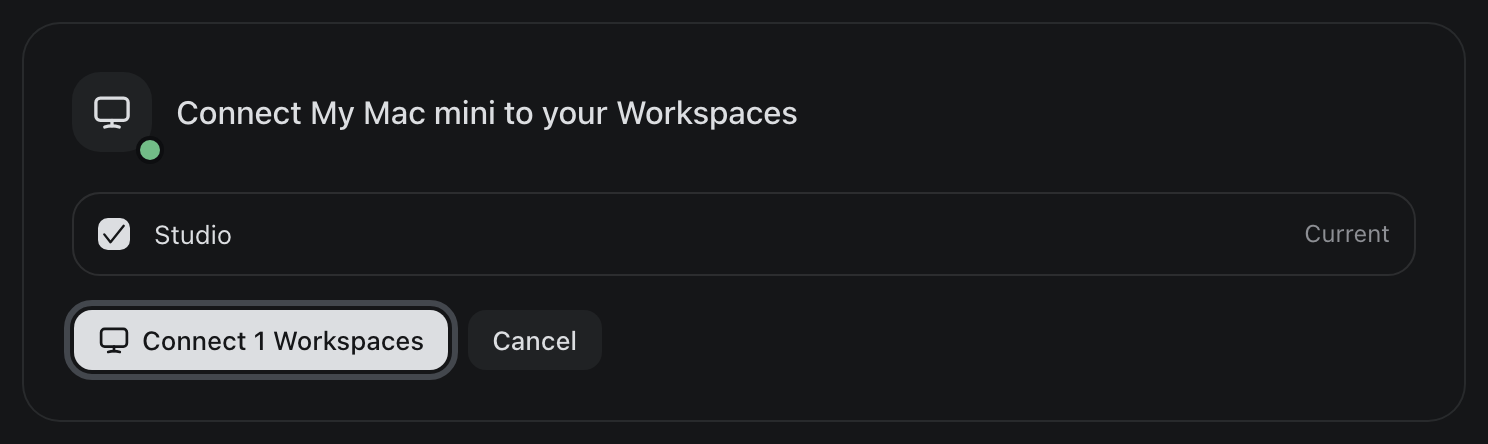
- Your browser opens Agent.Space. Sign in, tick the Workspace to connect and click “Connect 1 Workspaces”.
- Back in the menu bar panel, the status at the top turns to “Connected”.
When done, it showsConnected
- 3
Allow remote control
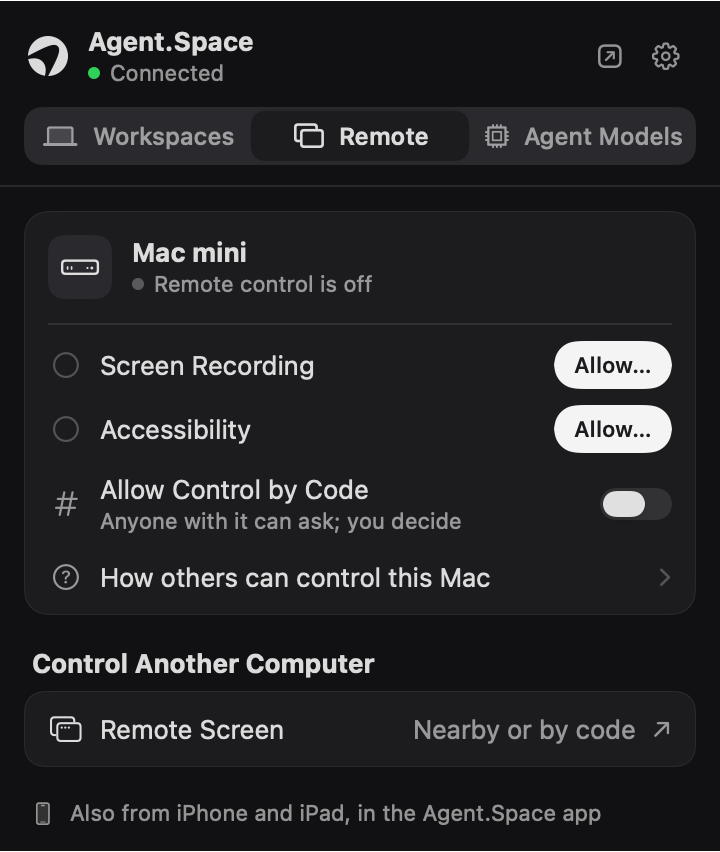
- In the panel, switch to the Remote tab.
- Click “Allow…” next to Screen Recording; System Settings opens at Screen Recording, where you turn Agent.Space on. Do the same for Accessibility.
- macOS may ask you to quit and reopen Agent.Space. Afterwards, “Remote control is on” shows under the Mac’s name.
When done, it showsRemote control is on
- 4
Control it on the web
- Open agent.space in a browser on any computer, sign in, and open the Workspace you picked in step 2.
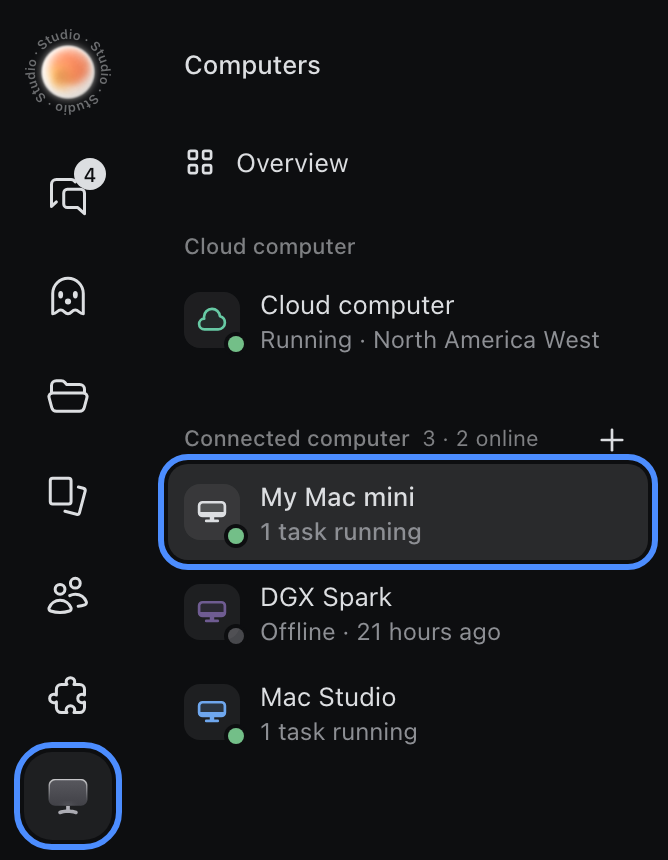
- Click Computers, the monitor icon in the far-left bar.
- Under Connected computer, click this Mac. It should say Online.
- Click “Remote control” at the top right to see and use its screen in the browser. Phones and tablets work the same way in a browser, and on iPhone and iPad in the Agent.Space app too.
When done, it showsOnline

Troubleshooting
I can’t find the Agent.Space icon in the menu bar
With many menu bar icons, some hide behind the notch or are hidden by macOS. Double-click Agent.Space in Applications again and its panel opens.
The Mac is missing or offline on the web
Check that the Mac is on, Agent.Space is running and the top of its menu bar panel says “Connected”. A sleeping Mac can’t be reached.
Permissions are granted but it still says “Remote control is off”
Quit and reopen Agent.Space. macOS applies new permissions only after the app reopens.
What is “Cloud computer” in the list?
That is the Workspace’s own cloud computer, not your Mac. Pick the Mac you just connected under Connected computer.
Windows shows “Windows protected your PC” when I install
The Windows installer isn't signed yet, so SmartScreen may stop it. Click “More info”, then “Run anyway” to carry on.