




Agent.Space Bridge App
Bring your computer into the space.
Your Claude Code and Codex, with your subscriptions, your files and your screen. All of it, in.
Mac: Apple silicon, macOS 14 or laterWindows: Windows 10 or 11, x64
Your Agents
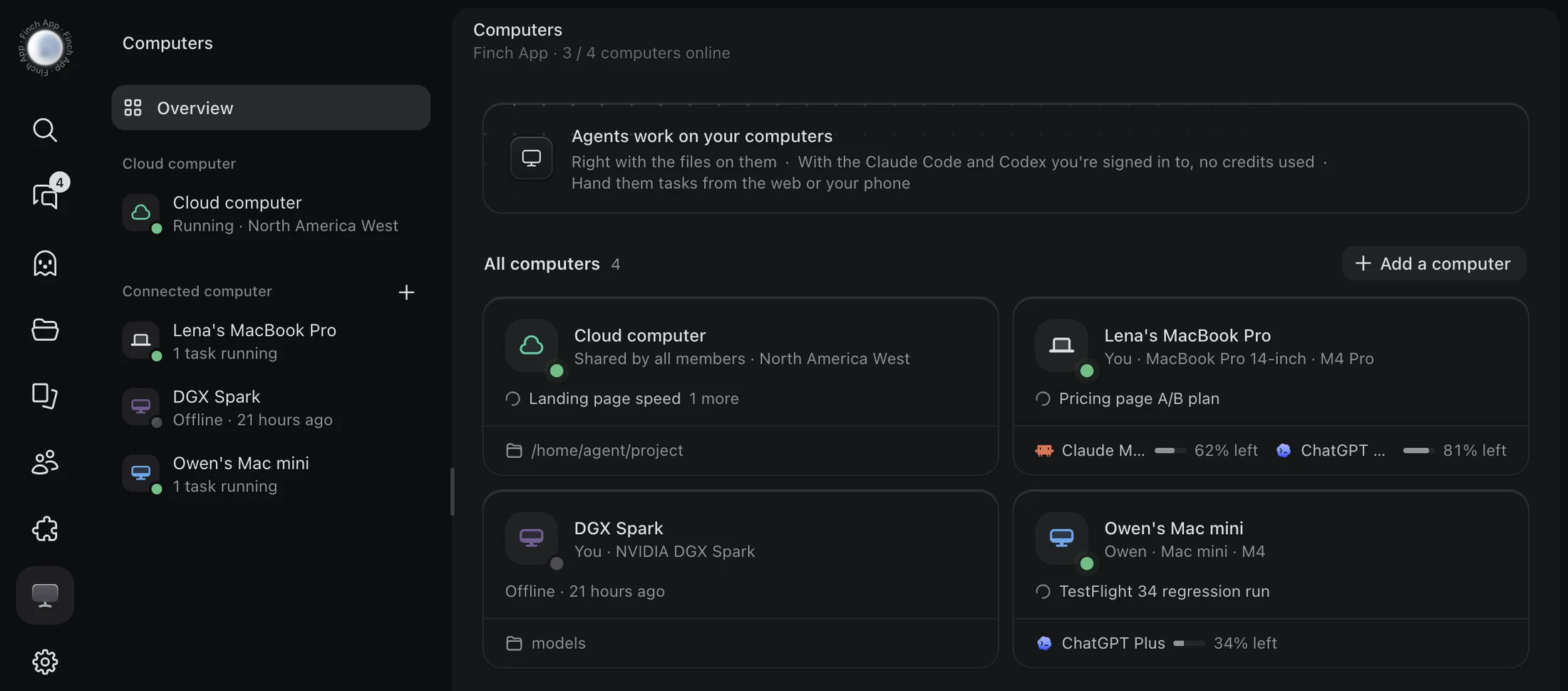
Your Agents work on your computer.
Claude Code, Codex, DeepSeek Harness and WorkBuddy run on whichever computer they are installed on.

- They read and write the folders on this computer, in the setup you already have.
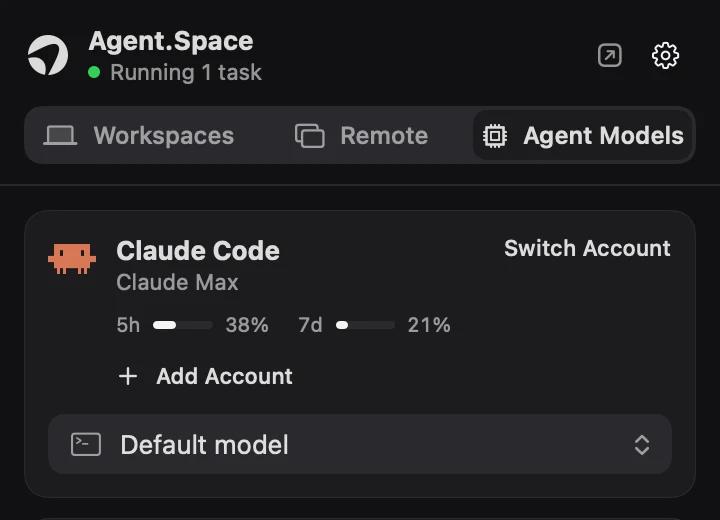
- They use your own subscriptions, not credits; how much each account has left is in plain view.
- Hand them tasks from the web or your phone. While a task runs, the Mac stays awake.
Local chats
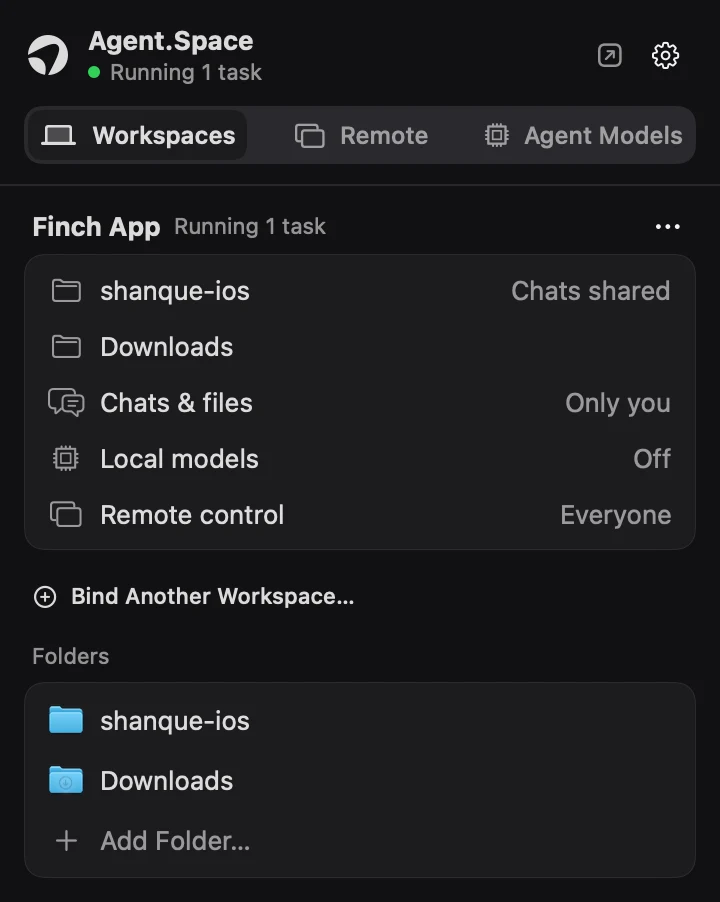
What you say in your terminal, your teammates can see.
Chats you have with Claude Code and Codex on your own computer are shared into the Workspace, read-only.

- Each folder has its own switch. Sharing starts when you turn it on; earlier chats are shared only once you carry on in them.
- Teammates see the progress and the images. The chat carries on at your computer.
- When the computer goes offline, the chat stays as it was last shared.
Your call
Which folders, and who can use them: you say.
Folders go one at a time. Chats and files, local models and remote control are each Only you, Everyone, or off.
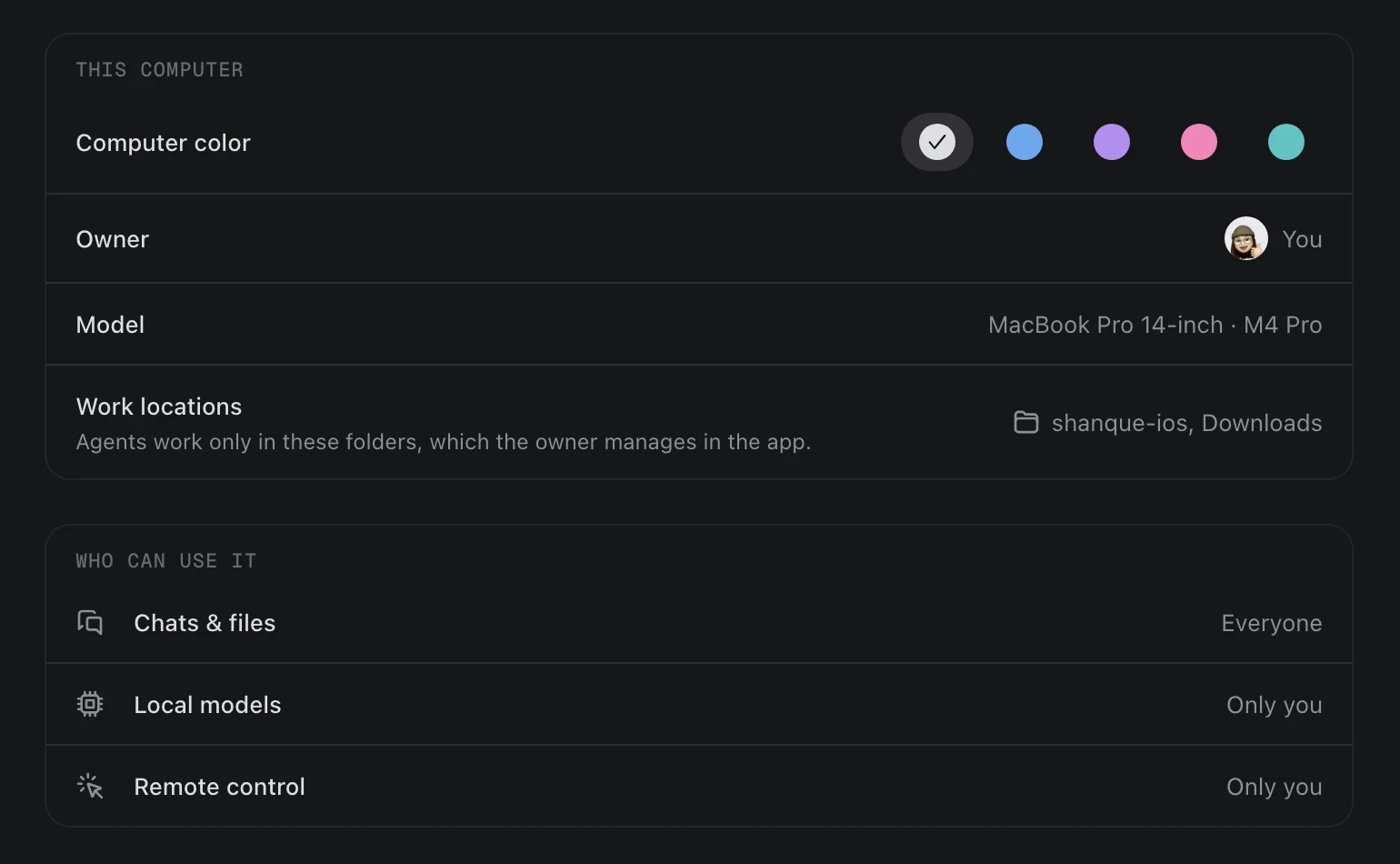
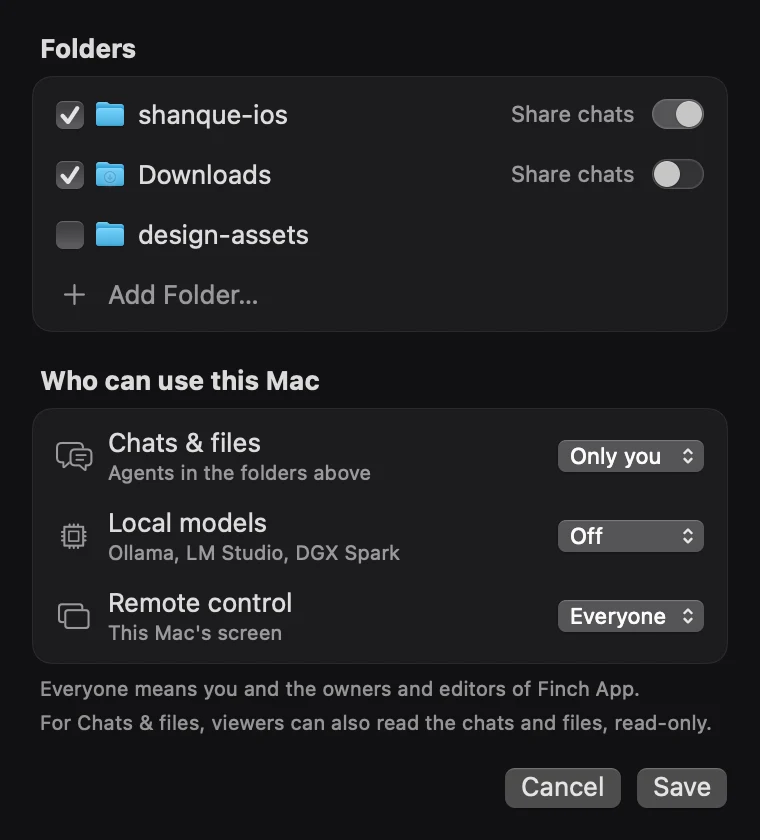
- Teammates' tasks use your login and your quota, and start only in the folders you gave.
- Local models on Ollama, LM Studio or a DGX Spark can be shared with the Agents in the space.
- Your computer connects out and opens no port. Agents sign in as you and reach the model provider directly.
Remote Screen
A whole Mac's screen, or just one app brought over.
Remote Screen is in this app: open another Mac's desktop, or bring over only one of its apps.
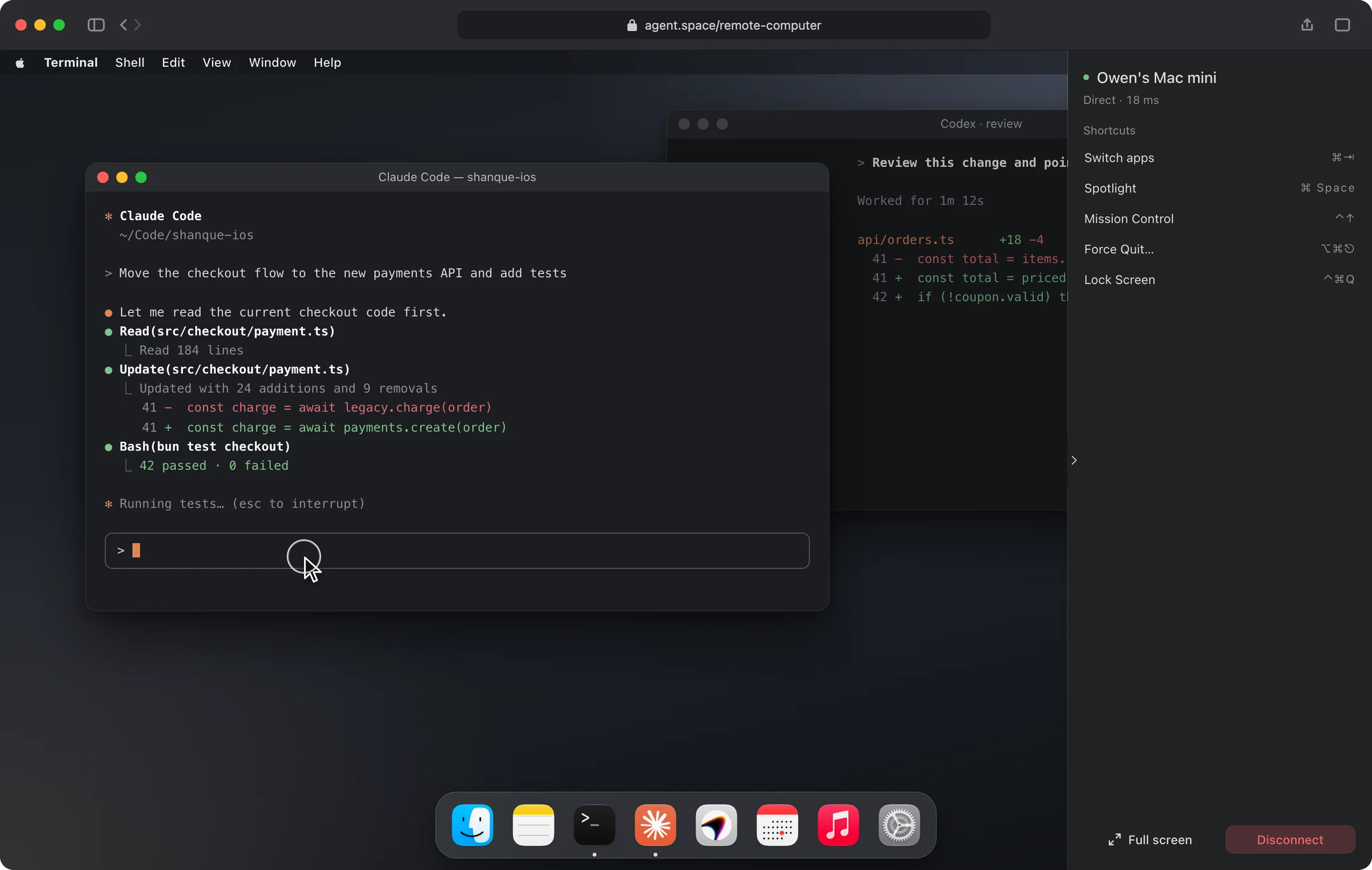
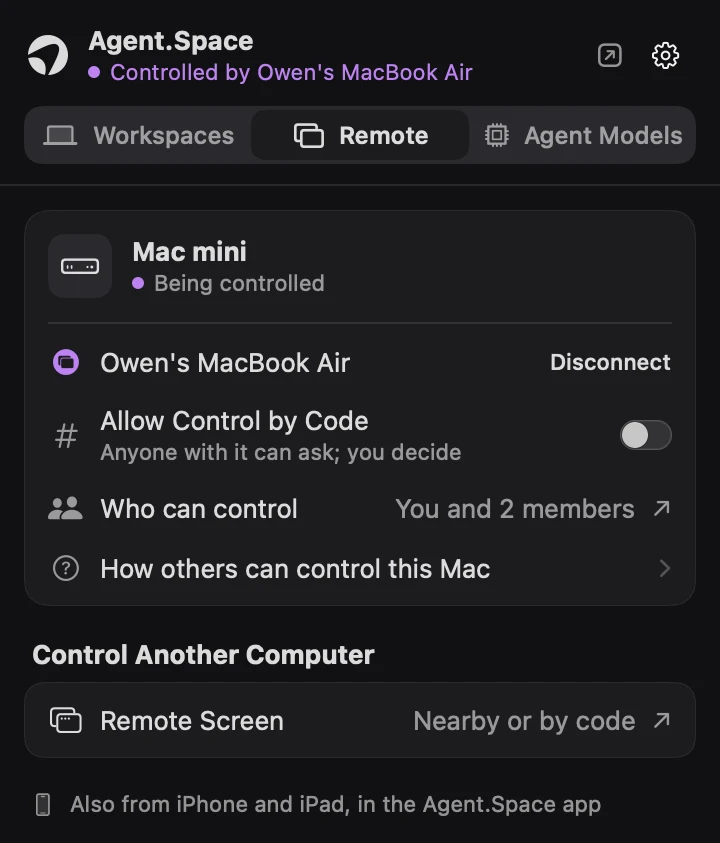
- Open it from a browser, the Mac app, or the Agent.Space app on an iPhone or iPad.
- The picture and the keyboard input are end-to-end encrypted.
- Who is controlling this Mac is always in the menu bar. With a code, you say yes at this Mac, or choose Always allow.
Three steps to bring a computer in.
Download and open
Install the app, and the Agent.Space mark appears in your menu bar (the system tray on Windows).
Approve in the browser
Sign in, tick the Workspaces to join (the ones that run on a cloud computer), and approve once.
Choose folders, choose who
Back in the app, decide which folders a Workspace gets and who can use them.
The Windows app does not have Remote Screen, chat sharing or model switching yet.
Read the setup guideNo Mac of your own? See the Dedicated Mac
Your terminal's Agents, on any model you like.
In the Mac menu bar, point Claude Code, Codex and OpenCode at Agent.Space's models or at your own provider. One click to switch, one click to restore.
Many people. Many agents. One space. Your computer, in it.
Bring it in, and the Agents work on your computer while your teammates pick up in the space.
Mac: Apple silicon, macOS 14 or laterWindows: Windows 10 or 11, x64