


You can use a Windows computer to access a remote Mac, but Xcode still runs on the Mac. Renting provides access to the required environment; it does not turn Xcode into a Windows application or automatically solve signing and device-testing requirements.
Before paying, check whether the entire path from opening your project to inspecting the result works for you.
Identify what runs where
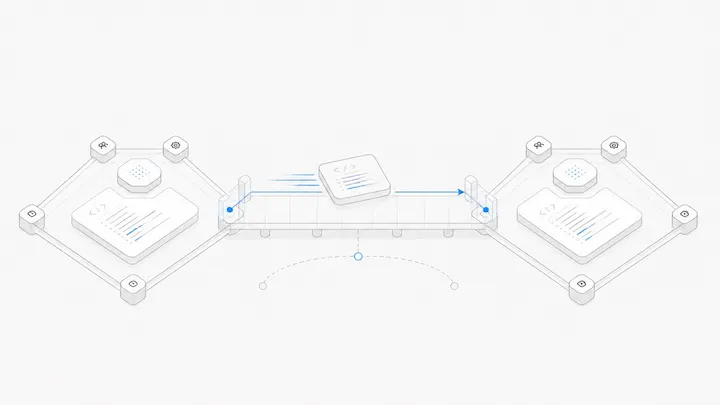
Your Windows machine provides the keyboard, screen and connection. The remote Mac runs the development tools. Decide how you will move code in and build output out, and which remote-access method the rental supports.
If your main goal is to understand execution environments, the local, cloud and dedicated Mac comparison covers that decision. For Xcode, the immediate concern is whether the remote environment matches your project's requirements.
Check the toolchain as a set
Write down the required Xcode version, macOS version, SDK and project dependencies. Use Apple's Xcode system requirements to check compatibility rather than assuming the newest tool runs on every Mac configuration.
If you intend to submit an app, separately check Apple's current submission requirements. A project that builds is not automatically ready for submission. Confirm that you can install the needed tools and have enough disk space for them before choosing a rental.
Separate signing from device access
Signing and distribution require appropriate accounts and permissions for the workflow you choose. Do not put signing credentials into a public repository or assume the rental includes someone else's developer account.
Also distinguish testing in a simulator from testing on a physical device. A phone plugged into your Windows computer is not automatically available to the remote Mac. If your work depends on device debugging, verify a supported arrangement before renting. A desktop connection alone is not evidence of that support.
Trial your own project, not just the desktop
Use a small project or a safe copy with sensitive information removed. Confirm that it opens with the required toolchain, resolves dependencies, builds and produces a result you can inspect. Test the simulator if your workflow uses it. Then retrieve the build output you need.
Record the stopping point precisely: dependency failure, signing failure and remote-display failure need different fixes. A screenshot of Xcode opening only proves that the application opens.
If the real requirement is recurring automated builds, compare a Mac mini self-hosted runner with an interactive remote desktop workflow.
Rent only after the required path is clear
Agent.Space's Mac page describes its current machine offering. Treat Xcode installation, compatible versions, signing and device access as separate checks; this article does not assert that a particular Xcode workflow is preconfigured or managed for you.
If a small project passes the complete test and the plan meets your access needs, you have a basis for choosing it. If physical-device testing remains unresolved, settle that dependency before committing to a longer rental.